
🔍 Read the full analysis: 8 Ways To Find A High Refresh Gaming Monitor For Smooth Play on ThorstenMeyerAI.com

Get business pricing on tech for your team
- Business-only prices and quantity discounts
- Tax-exempt purchasing
- Multiple users, one account, clear invoices
TL;DR
A high refresh rate is only useful if your PC can deliver enough frames and the screen’s resolution and size suit your setup. The source compares eight monitors, from a 4K 320Hz MSI to 1080p 240Hz options, and outlines eight factors buyers should weigh. Product-specific performance and features should be checked before purchase.
ThorstenMeyerAI.com has published a guide to eight high-refresh gaming monitors, comparing models that range from a 4K, 320Hz MSI display to more accessible 1080p options. Its central advice is to match a monitor’s resolution and refresh rate to the frame rates a PC can actually produce, rather than choosing by the highest specification alone, a consideration also explored in this look at high-refresh gaming monitors.
The guide names the MSI MAG 272URDFA E16 as its overall pick for buyers seeking a 4K display with a very high refresh rate. It lists the monitor’s refresh rate as 320Hz, while warning that running games at 4K can place a heavier demand on a graphics card. The recommendation is based on the combination of resolution and speed, not a claim that every PC can make full use of both.
For a lower rendering load, the guide points to the AOC Q27G41ZE, a 27-inch QHD monitor with a 240Hz native refresh rate and an overclocked 260Hz mode, alongside other high-refresh gaming monitor options. It also highlights the Samsung Odyssey OLED G6 for its QD-OLED panel, and identifies 24-inch-class 1080p models such as the ASUS VG259QM5A and Dell SE2426HG as options for buyers prioritizing high frame rates over sharper resolution.
The remaining choices cover larger or curved formats. The guide describes the Sceptre 34-inch ultrawide and a 32-inch SANSUI model as more immersive options, while noting that the AOC C27G4ZH combines a 27-inch curved screen with 1080p. Its comparison says it weighs resolution, screen format, panel type, adaptive-sync support where specified, connectivity and adjustment details; it does not assume features that the product details leave unspecified.
The 8 picks
- 1
 Samsung 27" Odyssey OLED G6 (G61SH) QD-OLED Gaming MonitorView on Amazon →
- 2
 msi MAG 272URDFA E16 27-inch 3840 x 2160 (UHD) Gaming Office Monitor, 320Hz,…View on Amazon →
- 3
 Sceptre C345B-QU240T 34-inch Curved Ultrawide Gaming MonitorView on Amazon →
- 4
 SANSUI 32 Inch Curved 240Hz Gaming Monitor High Refresh Rate, FHD 1080PView on Amazon →
- 5
 AOC 27" Gaming Monitor QHD 240Hz Overclocked IPS NVIDIA G‑Sync Q27G41ZEView on Amazon →
- 6
 AOC C27G4ZH 27-Inch Curved FHD Gaming MonitorView on Amazon →
- 7
 ASUS TUF Gaming VG259QM5A 24.5-Inch 1080p 240Hz Gaming MonitorView on Amazon →
- 8
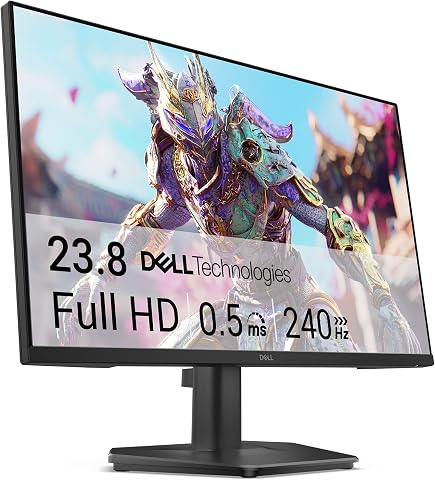 Dell 24 240Hz Gaming Monitor – SE2426HG – 23.8-inch FHD (1920×1080) 240Hz Dis…View on Amazon →
Match Monitor Speed to Your PC
The buying decision affects both how smooth games can look and how much detail the screen can show. A high refresh rating does not mean a computer will deliver an equally high frame rate: the guide says demanding games at 4K require more graphics power than at 1080p, while QHD sits between those resolutions in detail and rendering demand.
That makes the right choice depend on the player’s system and games. A competitive player with a midrange PC may get more practical use from a 1080p screen that allows higher frame rates. Someone with a powerful graphics card, or who values fine detail, may prefer 4K or QHD. Buyers who do not regularly reach a monitor’s highest refresh rate may be paying for headroom they rarely use.
Products Worth Considering

Samsung 32-Inch Odyssey G5 (G51F) QHD 180Hz Gaming Monitor

LG UltraGear 32-inch QHD Curved Gaming Monitor, 180Hz, 1ms, FreeSync

Samsung Odyssey G5 34-Inch Ultra-WQHD 180Hz Curved Gaming Monitor
As an affiliate, we earn on qualifying purchases.
Eight Checks Before You Buy
1. Match resolution to graphics power
Check expected performance in the games you play. 4K demands more rendering power than 1080p, while QHD offers a middle ground. Choose a resolution your PC can drive at a frame rate that makes the monitor’s speed useful.
2. Choose a usable refresh rate
A move to 240Hz may be useful for fast competitive play, but the guide says the difference between 240Hz, 260Hz and 320Hz is more specialized and depends on sustained high frame rates. Treat an overclocked mode as an extra, not the sole reason to buy.
3. Look for adaptive sync
If frame rates vary, check whether a monitor supports adaptive sync and whether it needs to be enabled in the monitor menu or graphics software. The source does not list this feature for every model, so verify the specification for the particular display.
4. Consider screen size and pixel density
The same 1080p image can look less crisp on a larger display, especially at a close desk distance. A 24-inch 1080p monitor may suit close-up competitive play; QHD can provide sharper detail on a larger desktop, while 4K has a greater GPU cost.
5. Measure your viewing distance
Before choosing a large screen, check desk depth and seating distance. When sitting close, pixel density can matter more than gaining extra inches. The guide presents size as a practical fit question, not an automatic upgrade.
6. Check ultrawide game support
A 34-inch ultrawide can provide more horizontal space, but not every game handles ultrawide formats well. Some titles may show side borders or stretch interface elements. Check support in the games you play most often.
7. Treat curvature as a preference
A curve can make a wide screen feel more enveloping, but it is not a performance improvement. Curved displays may also be less convenient for shared viewing or precise visual work, so consider how the screen will be used beyond gaming.
8. Compare panel and practical features
Panel type, connectivity and adjustment options affect how a monitor fits a setup. The guide singles out the Samsung’s QD-OLED panel as a distinct option, while advising buyers to compare listed ports and adjustment details rather than assume a feature is included.
“I ranked these monitors by how well their refresh rate, resolution, and screen format work together, rather than treating the largest refresh number as an automatic win.”
— ThorstenMeyerAI.com buying guide
Check Specifications and Compatibility
The source does not provide independent benchmark results, prices, testing methods for each monitor, or a publication date. Its rankings and descriptions are the guide’s recommendations, not a universal performance verdict. It also does not specify every model’s adaptive-sync support, ports or adjustment features, so those details should be checked against current manufacturer specifications.
Actual frame rates will vary with a PC’s graphics hardware, game settings and the games being played. The guide does not establish how often buyers can reach 240Hz, 260Hz or 320Hz in particular titles, nor whether an individual setup can sustain those rates at a chosen resolution.
Verify Your Setup Before Purchase
Buyers can use the guide’s eight checks to narrow the field, then compare the current specifications and prices for the models available to them. The next practical step is to check expected performance in their regular games at the intended resolution, measure desk space and viewing distance, and confirm support for desired features such as adaptive sync or ultrawide modes. The source provides no announced follow-up testing or update schedule.
Key Questions
Does a 320Hz monitor make every game run at 320 frames per second?
No. Refresh rate is the display’s update capability; the PC and game determine the frame rate. The guide says that reaching very high frame rates, particularly at 4K, requires suitable hardware and depends on the game.
Which monitor does the guide recommend overall?
The guide names the MSI MAG 272URDFA E16 as its overall pick, citing its combination of 4K resolution and 320Hz refresh. It also cautions that 4K gaming places a heavier demand on the graphics card.
Is 240Hz enough for high-refresh gaming?
The guide treats 240Hz as a sensible baseline for buyers considering fast competitive play. It describes the gains from 260Hz or 320Hz as more specialized and dependent on a system sustaining very high frame rates.
Should I choose 1080p, QHD or 4K?
Choose according to your PC’s performance and how much you value detail. 1080p is less demanding, QHD is a middle ground, and 4K offers more pixels but requires more graphics power to run demanding games at high frame rates.
What should I check before buying an ultrawide monitor?
Confirm that your main games support the ultrawide format as expected; some titles may show borders or stretch interface elements. Also check that the screen’s width suits your desk and seating position.
Source: ThorstenMeyerAI.com