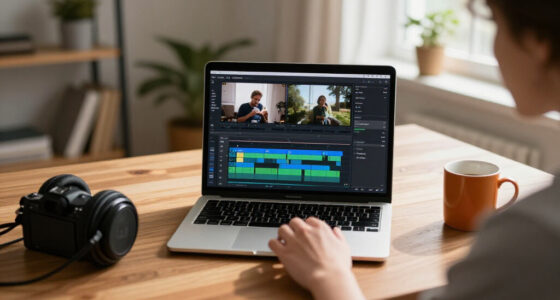
This checklist is for people testing AI automation prompts who want a practical setup for capturing results, improving recordings, and keeping test materials organized. It covers a mix of workflow advice and equipment that can support a repeatable testing routine.

Get business pricing on tech for your team
- Business-only prices and quantity discounts
- Tax-exempt purchasing
- Multiple users, one account, clear invoices
The sections follow the tasks involved: document prompt tests, improve audio and video, store working files, and consider your screen setup. Product names are included where provided; the notebook and privacy filter sections focus on selection advice rather than a specific pick.
Use each section to match the item to your actual workflow. Check your computer’s available connections, workspace dimensions, and the way you run tests before choosing gear, then prioritize the biggest bottleneck in your setup.
Prompt testing notebook
A notebook gives each prompt test a consistent record. Note the prompt version, inputs, expected behavior, actual output, and any follow-up changes. This makes it easier to compare runs and retrace what changed when an automation behaves differently. Keep entries brief enough that you will continue using the system, but detailed enough to reproduce a test.
A common mistake is writing observations without identifying the exact prompt or input. Use a repeatable template, label versions clearly, and separate expected results from what the system actually returned. If tests involve several tools or steps, record the sequence and relevant settings as well. Choose a format that suits your routine: paper can be quick to mark up, while a digital notebook may be easier to search and organize. Either way, make sure the notebook is easy to reach during a test and supports consistent notes.
What to look for:
- A repeatable entry template for prompt, input, and output
- Clear space to record expected versus actual behavior
- Labels or sections for prompt versions
- A format that is easy to access during testing
- Room to note tool steps and relevant settings
USB microphone
Audio can be part of an automation workflow when prompts are spoken, meetings are transcribed, or voice output is reviewed. The RØDE NT-USB+ Professional USB Condenser Microphone is the listed pick for this slot. Before choosing a microphone, identify whether your tests involve live speaking, recorded clips, or both; that determines how often you will need to reposition it and how much control you want over your recording setup. Match the mic to the workflow, not just the product category.
Check your computer’s available USB connection and the space where the microphone will sit. Consider whether its placement will interfere with your keyboard, monitor, or other desk items, and plan for a comfortable speaking position. A frequent buying mistake is overlooking the rest of the recording environment: distance, room noise, and consistent placement can all affect whether test recordings are comparable. Set a repeatable microphone position and speaking distance so changes in results are easier to attribute to the prompt or automation. Consistency helps comparisons.
What to look for:
- USB connection compatibility with your computer
- A practical placement that leaves desk controls accessible
- A repeatable speaking distance for comparable recordings
- Fit with voice capture, recorded clips, or both
- A setup that works in the room where you test
RØDE NT-USB+ Professional USB Condenser Microphone

The RØDE NT-USB+ is a USB-C condenser microphone for recording, podcasting, streaming, and calls on computers and mobile devices. It features a studio-grade capsule, a low-noise preamp, zero-latency headphone monitoring, and APHEX audio processing, and includes a detachable pop filter and desktop stand.
Pros:
- USB-C connectivity works with computers and mobile devices.
- Zero-latency headphone monitoring helps users hear themselves while recording.
- Includes a detachable pop filter and desktop stand.
- APHEX audio processing is available through RØDE Central software.
Cons:
- The listed frequency response is incomplete, with only a lower value provided.
- Requires a wired connection.
Best for: People recording spoken prompts or reviewing voice-based automation
Not ideal for: Anyone whose testing workflow does not use audio
Bottom line: Confirm your computer connection and desk layout, then keep microphone position consistent across tests.
Webcam lighting kit
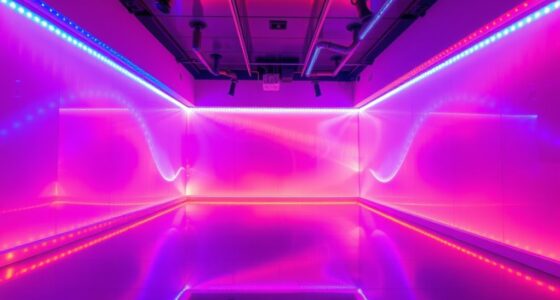
When automation tests include video calls, demonstrations, or recorded walkthroughs, repeatable lighting can make the visual setup easier to manage. The listed pick is the GVM RGB Photography Lighting Kit with 2 Softboxes and Bluetooth Contro. Consider where the lights will go relative to your desk and camera, and whether you have room to position them without obstructing the workspace. Plan placement first so the kit fits the actual testing area.
A common mistake is choosing a lighting kit without accounting for stands, softboxes, camera position, and available floor space. Measure the area and consider whether the lights need to stay set up or be moved between sessions. If you test in different locations, think through how you will recreate the arrangement. Also check how the listed Bluetooth control fits your intended setup and whether the devices you use support the controls you need; the product name alone does not establish compatibility with a particular computer or camera. Aim for repeatable positioning so recorded sessions are easier to compare.
What to look for:
- Enough room for the lights and their placement around your desk
- A workable relationship between lights and camera position
- A setup that can be recreated between test sessions
- Control compatibility with the devices in your workflow
- Storage and repositioning needs between uses
GVM RGB Photography Lighting Kit with 2 Softboxes and Bluetooth Control

This lighting kit includes two 60W RGB video lights with high brightness, adjustable color temperature, and multiple lighting scenes suitable for video recording and photography. It features app control, master-slave mode, and dual power options for versatile indoor and outdoor use.
Pros:
- High brightness with adjustable color temperature
- Multiple lighting scenes for creative effects
- App-controlled for remote adjustments
- Versatile power options for indoor and outdoor use
Cons:
- Battery not included, may require additional purchase
- Complex setup for beginners
- Heavy when fully assembled
Best for: People who record demonstrations or run video-based tests
Not ideal for: Testers without space for a lighting setup
Bottom line: Check your room layout and control compatibility before planning where the kit will live.
Portable SSD
A separate drive can help keep prompt datasets, recordings, and exported test results together. The listed pick is the Samsung T9 Portable SSD 4TB, USB 3.2 Gen 2×2 External SSD, Up to 2,000. Before choosing storage, estimate what kinds of files your tests create and how you organize them. Video and audio projects may take a different approach to organization than text-only test records, so consider your own workflow and file organization needs.
Check the computer or other device you plan to use with the drive, including its ports and support for the stated USB standard. A common mistake is assuming a listed connection specification guarantees the same experience on every host device. Confirm compatibility, decide whether files will be actively worked from the drive or copied there for safekeeping, and establish a folder and naming system for prompt versions. Keep any required backup process in mind as well: a portable drive can organize project files, but your workflow should specify how important records are preserved. Confirm device support before settling on a storage routine.
What to look for:
- Compatibility with the USB ports on your devices
- Capacity suited to your test files and recording habits
- A folder structure for prompts, inputs, and results
- A clear plan for working from or archiving to the drive
- A separate preservation routine for important records
Samsung T9 Portable SSD 4TB, USB 3.2 Gen 2×2 External SSD, Up to 2,000 MB/s
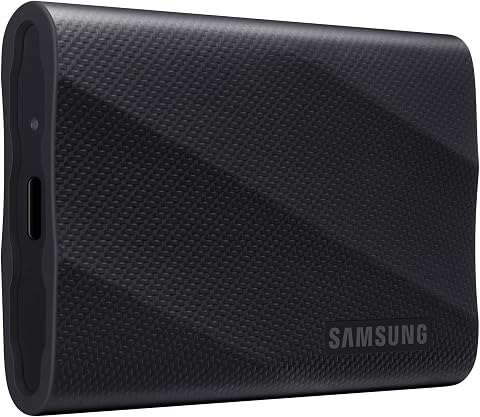
The Samsung T9 Portable SSD delivers up to 2,000 MB/s sequential read and write speeds over a USB 3.2 Gen 2×2 interface, making large file transfers fast and reliable. With a 4 TB capacity, rugged drop resistance, dynamic thermal guard, and AES‑256 hardware encryption, it’s built for creators who need performance and durability on the go.
Pros:
- Blazing transfer speeds up to 2 GB/s when paired with a compatible USB‑C port.
- Large 4 TB storage capacity for extensive media libraries and projects.
- Dynamic Thermal Guard keeps the drive cool during sustained heavy use.
- Rugged design tolerates drops up to 9.8 ft and includes AES‑256 encryption.
Cons:
- Maximum speeds require a USB 3.2 Gen 2×2 host and UASP‑enabled cable; slower on older ports.
- Performance can vary depending on the host device’s configuration.
Best for: People managing recordings and prompt test files across projects
Not ideal for: Anyone whose device setup does not support the drive connection
Bottom line: Verify your devices’ connection support and define a folder system before moving test files.
Mechanical keyboard
Prompt testing often involves repeated editing, labeling, and switching between tools. The Razer Huntsman V3 Pro 8KHz Analog Optical Gaming Keyboard, Black is the listed keyboard pick. Consider how much typing your workflow involves and whether you have room for the keyboard alongside a microphone, notebook, or other desk equipment. The most useful choice is one that fits your daily working layout and lets you keep common testing tasks accessible.
Check the keyboard’s connection and compatibility against the devices you use, and consider how its controls fit your usual typing habits. A common mistake is choosing a keyboard based only on its gaming-oriented name without considering everyday prompt editing, shortcuts, and desk space. If you switch among several devices, verify that your intended connection method works with each one. Arrange the keyboard so you can reach your notes and other equipment without awkward repositioning, then use a consistent set of shortcuts or labels for recurring actions. Workflow fit matters more than features you will not use.
What to look for:
- Compatibility with the computers you use for testing
- A desk footprint that leaves room for other tools
- Controls that suit your editing and shortcut habits
- A practical connection method for your device setup
- Comfortable access to notes and frequently used tools
Razer Huntsman V3 Pro 8KHz Analog Optical Gaming Keyboard, Black

The Razer Huntsman V3 Pro 8KHz is a competitive gaming keyboard with Gen-2 analog optical switches, adjustable 0.1–4.0 mm actuation, Rapid Trigger, and 8000Hz polling. It features onboard controls and storage for up to six profiles, textured doubleshot PBT keycaps, an aluminum top plate, sound-dampening foam, and a magnetic leatherette wrist rest.
Pros:
- Adjustable actuation and Rapid Trigger support precise, responsive inputs.
- 8000Hz polling and Snap Tap are designed for fast competitive gameplay.
- Onboard adjustments and storage for up to six profiles work without software.
- PBT keycaps, an aluminum top plate, foam dampening, and a magnetic wrist rest provide durable construction and added comfort.
Cons:
- The feature set is primarily aimed at competitive gaming.
- The product description does not specify a layout or keyboard size.
Best for: People who regularly type and revise prompts during testing
Not ideal for: Anyone seeking a keyboard for a setup it cannot connect to
Bottom line: Check device compatibility and desk fit, then prioritize the controls you will use in your testing routine.
Monitor privacy filter
A privacy filter may be relevant when prompt tests are performed in shared spaces or displayed on a screen others can see. Since no product is specified for this section, start with your monitor’s exact model and usable screen dimensions. Filters need to fit the display, and a mismatch can make installation awkward or leave part of the screen uncovered. Measure the display and check the monitor’s specifications before comparing options.
Consider how you use the screen throughout the day: whether you need to share it with colleagues, switch between tasks, or remove the filter regularly. A common mistake is selecting by screen size alone without checking aspect ratio, bezel design, attachment method, and whether the display has a curved surface. Confirm that the filter’s stated fit matches your particular monitor and that its installation method works with the bezel. Also consider whether it will interfere with your usual screen sharing or viewing habits. Choose based on monitor-specific fit and how the filter will be used.
What to look for:
- Exact monitor model and screen dimensions
- Matching aspect ratio and display shape
- An attachment method suited to the monitor bezel
- Whether the filter needs to be removed or repositioned
- Compatibility with your usual screen sharing routine
Build the setup in the order that removes the most friction: start with a reliable test record, then address audio or video capture if your workflow uses them. Add storage when your files need a clearer home, and consider keyboard or screen accessories according to your daily workspace and testing habits.
You do not need every item to make prompt testing useful. Begin with the part of your process that is hardest to repeat, choose tools that fit your devices and space, and keep refining your checklist as your testing routine grows.
Evergreen bestsellers Picks

De'Longhi Rivelia Automatic Espresso Machine with Milk Frother

Shark PowerDetect Robot Vacuum and Mop Combo with 60-Day Self-Emptying Base (AV2800ZE)

KitchenAid Artisan Mini Tilt-Head Stand Mixer, 3.5 Quart, Aqua Sky Blue
As an affiliate, we earn on qualifying purchases.