
This guide explains how to choose, set up, and use an AI-powered note-taking app to streamline your note management. It is ideal for beginners or those new to AI note tools aiming to improve productivity and organization within 30 to 45 minutes.

Get business pricing on tech for your team
- Business-only prices and quantity discounts
- Tax-exempt purchasing
- Multiple users, one account, clear invoices

Plaud Note Pro AI Voice Recorder with Transcription & Summarization
- ✔ Languages Supported: 112
- ✔ Display: AMOLED
- ✔ Thickness: 0.12 inches
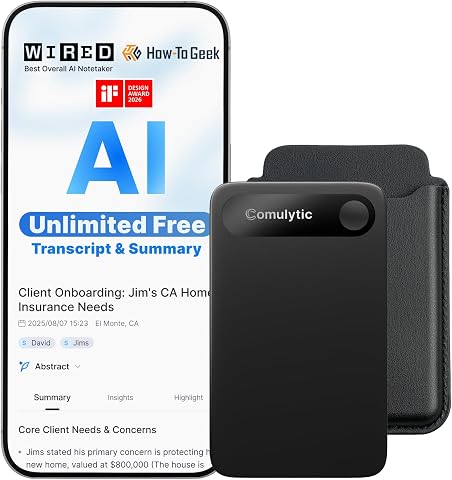
Comulytic Note Pro AI Voice Recorder with Unlimited Transcription and Summarization
- ✔ Display: 0.78-inch
- ✔ Battery Life: 45 hours of recording
- ✔ Storage: 64GB internal + cloud backup

Plaud Note AI Voice Recorder with Case and App Control
- ✔ Weight: 1.06 oz
- ✔ Thickness: 0.12 inches
- ✔ Storage Capacity: 64GB
Difficulty: Beginner | Time: 30-45 minutes
What You’ll Need
Tools & Materials:
- A compatible device (computer or smartphone)
- Internet connection
- An AI-powered note-taking app (e.g., Notion AI, Evernote with AI features, Obsidian with plugins)
Knowledge:
- Basic familiarity with using apps and software
- Understanding of note-taking basics
Plaud Note Pro AI Voice Recorder with Transcription & Summarization
<p><strong>Plaud Note Pro</strong> stands out for its high-accuracy transcription in 112 languages, making it a top choice for international teams and professionals. Its ultra-slim, lightweight design with a vivid AMOLED display ensures portability without sacrificing usability. The device supports capturing audio, images, and notes simultaneously, offering richer context for meetings or calls. Compared to the <strong>Comulytic Note Pro</strong>, it has a slightly higher premium cost and a steeper learning curve for advanced features, but its focus on security and multi-modal input makes it ideal for high-stakes environments.</p>
Pros:
- High-accuracy transcription supporting 112 languages with speaker labels
- Ultra-slim design with AMOLED display for easy use on the go
- Long battery life up to 50 hours of continuous recording
- Supports capturing audio, images, and notes for richer context
Cons:
- Requires subscription plans for extended transcription hours
- Advanced features can be complex for new users
- Premium device cost may be high for casual users
Best for: Professionals and teams needing multilingual, secure, and versatile documentation.
Not ideal for: Casual users or those seeking unlimited transcription without additional costs.
Bottom line: A premium, versatile voice recorder perfect for professionals needing accurate, multilingual transcription in a compact form.
“A premium, versatile voice recorder perfect for professionals needing accurate, multilingual transcription in a compact form.”
Comulytic Note Pro AI Voice Recorder with Unlimited Transcription and Summarization
<p><strong>Comulytic Note Pro</strong> makes a compelling case for its unlimited transcription and cloud backup, making it ideal for those with high-volume recording needs. Its durable aluminum body and compact size favor portability, while Wi-Fi and BLE connectivity facilitate real-time data sync. However, the reliance on a subscription for premium features and the need for an app for full functionality might deter casual users. Compared with the <strong>Plaud Note Pro</strong>, it offers unlimited transcription, but lacks traditional microphone input, which could limit versatility in some scenarios.</p>
Pros:
- Supports 113 languages with high-precision AI transcription
- Compact, durable design with 45 hours of recording and long standby
- Real-time sync with Wi-Fi and cloud backup for seamless access
Cons:
- Premium features require a subscription upgrade
- Limited to digital voice recording only
- Requires app to unlock full functionality
Best for: Students, journalists, and professionals who require extensive, uninterrupted transcription.
Not ideal for: Users who prefer standalone devices or do not want to rely on apps for operation.
Bottom line: A robust, cloud-integrated voice recorder that’s perfect for intensive transcription, especially for students and journalists.
“A robust, cloud-integrated voice recorder that’s perfect for intensive transcription, especially for students and journalists.”
Plaud Note AI Voice Recorder with Case and App Control
<p><strong>Plaud Note AI Voice Recorder</strong> offers a portable, feature-rich experience with multimodal input, real-time highlights, and role-specific summaries. Its security features with encryption and compliance make it suitable for sensitive environments. The device supports 112 languages and is designed for busy professionals who need quick, accurate notes on the move. While its subscription plans are necessary for extended transcription, its compactness and security features set it apart for on-the-go, security-conscious users. However, the limited local storage and potential complexity for casual users mean it’s best for those ready to leverage its advanced features.</p>
Pros:
- Ultra-slim, lightweight design for portability
- Supports 112 languages with accurate transcription
- Secure data handling with encryption and compliance
- Multimodal input and role-specific summaries
Cons:
- Requires subscription for extended transcription hours
- Limited local storage without external transfer
- Complex features may be challenging for casual users
Best for: Busy professionals and teams needing portable, secure, multimodal note-taking.
Not ideal for: Casual users or those seeking a simple, standalone device without subscription dependencies.
Bottom line: A portable, secure, and multimodal note-taker ideal for professionals needing quick, accurate, and versatile documentation.
“A portable, secure, and multimodal note-taker ideal for professionals needing quick, accurate, and versatile documentation.”
As an Amazon Associate we earn from qualifying purchases.
Before You Start
Ensure your device has a stable internet connection. Sign up or log into your chosen AI note app. Familiarize yourself with the app’s interface if possible, to avoid confusion during setup.
Step-by-Step Instructions
Step 1: Select the appropriate AI note-taking app
Research and choose an AI-powered note app that suits your needs, such as Notion AI, Evernote with AI features, or Obsidian with plugins. Download or access the app via your web browser.
Tip: Check app reviews and feature lists to confirm AI capabilities like auto-summarization, content suggestions, or voice input.
Check: You have the app installed or opened, and understand its main AI features.
Step 2: Create a new account or log in
Register for a new account or log into your existing account on the app platform. Complete any onboarding steps or tutorials offered.
Tip: Use a strong, memorable password and verify your email if required.
Check: You are logged into your account and can access the main dashboard.
Step 3: Configure AI features and settings
Access the app settings to enable AI features such as automatic tagging, smart search, voice input, or content summarization. Adjust preferences to match your workflow.
Tip: Disable features you won’t use to reduce clutter and improve app responsiveness.
Check: AI features are activated and ready to assist with note-taking.
Step 4: Create your first note
Start a new note by clicking the ‘New Note’ button. Enter some text or voice input about a topic you wish to remember or organize.
Tip: Use clear headings and bullet points to help AI understand and categorize your notes better.
Check: Your note is saved, and AI suggestions or enhancements are available.
Step 5: Test AI assistance
Use AI features such as auto-summarization, keyword extraction, or content suggestions on your note. Experiment with voice input if available.
Tip: Make a note of how AI improves or speeds up your note-taking process.
Check: AI features provide relevant suggestions or summaries, confirming proper setup.
Common Mistakes to Avoid
- Overloading notes with too much information without structure. — Use headings, bullet points, and concise sentences to aid AI processing and retrieval.
- Ignoring AI settings or under-utilizing features. — Explore and enable relevant AI options during setup and regularly practice their use.
- Assuming AI will automatically organize notes perfectly. — Review AI suggestions and manually organize or tag notes for clarity.
Troubleshooting
Problem: AI features are not activating or providing suggestions.
Solution: Check app permissions, ensure your internet connection is stable, and verify AI features are enabled in settings.
Problem: Notes are not saving or syncing properly.
Solution: Ensure your device has internet access, refresh the app, and confirm account synchronization is active.
Problem: AI-generated summaries or suggestions are irrelevant.
Solution: Provide clearer, more structured input in your notes and refine AI settings for better accuracy.
What Success Looks Like
You can create, edit, and retrieve notes efficiently with AI-assisted features actively improving your workflow. AI suggestions and summaries are relevant, and your notes are well-organized and easy to find.
Next Steps
Regularly review and refine your note organization. Explore advanced AI features like automation or integrations. Keep your app updated and back up your notes periodically.
Frequently Asked Questions
How do I improve AI accuracy in my notes?
Use clear, concise language, include headings, and tag notes appropriately to help AI understand and organize your content better.
Can I use AI note-taking apps offline?
Some apps offer limited offline capabilities, but most require an internet connection for AI features. Check your app’s offline options.
How secure is my data with AI-powered note apps?
Choose apps with strong encryption and privacy policies. Avoid storing sensitive information unless the platform guarantees data protection.
Halloween Picks
halloween
As an affiliate, we earn on qualifying purchases.