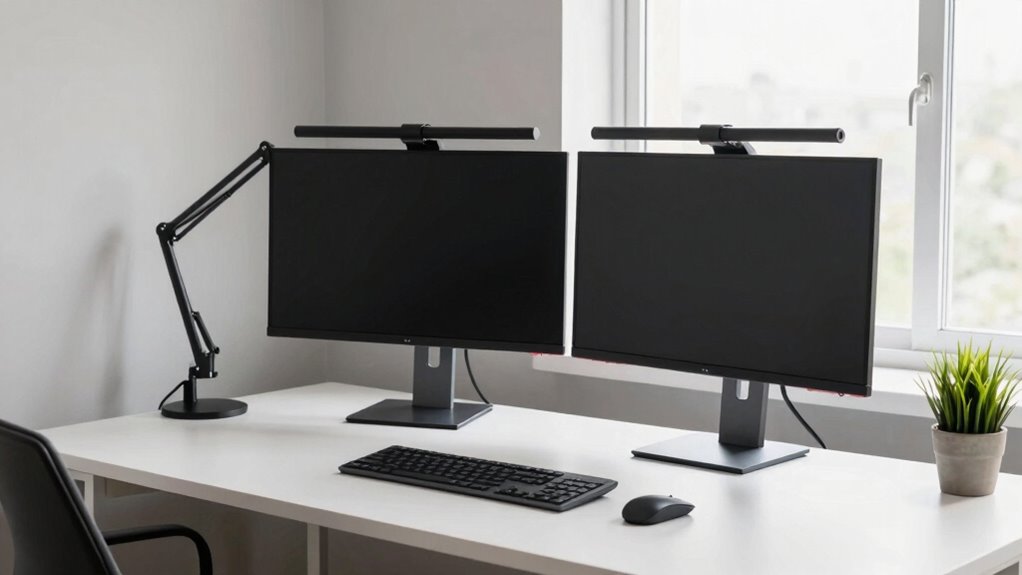

To build a space-efficient dual-monitor setup, use adjustable arms or wall mounts to keep monitors at eye level and free desk space. Incorporate ergonomic accessories like compact keyboards and mice to reduce clutter. Manage cables with clips or sleeves for a tidy look and label them for easy troubleshooting. Opt for vertical storage and multi-purpose furniture to maximize space. Keep your workspace minimal and organized—stay tuned for more tips to create a comfortable, productive zone.

Get business pricing on tech for your team
- Business-only prices and quantity discounts
- Tax-exempt purchasing
- Multiple users, one account, clear invoices
Key Takeaways
- Use adjustable monitor arms or wall mounts to free desk space and position monitors ergonomically.
- Implement cable management solutions like sleeves and clips to keep cords organized and hidden.
- Choose compact, multi-purpose furniture to maximize available workspace efficiently.
- Arrange monitors at eye level with adjustable mounts to reduce clutter and improve comfort.
- Utilize vertical storage options such as wall-mounted shelves for supplies and accessories.
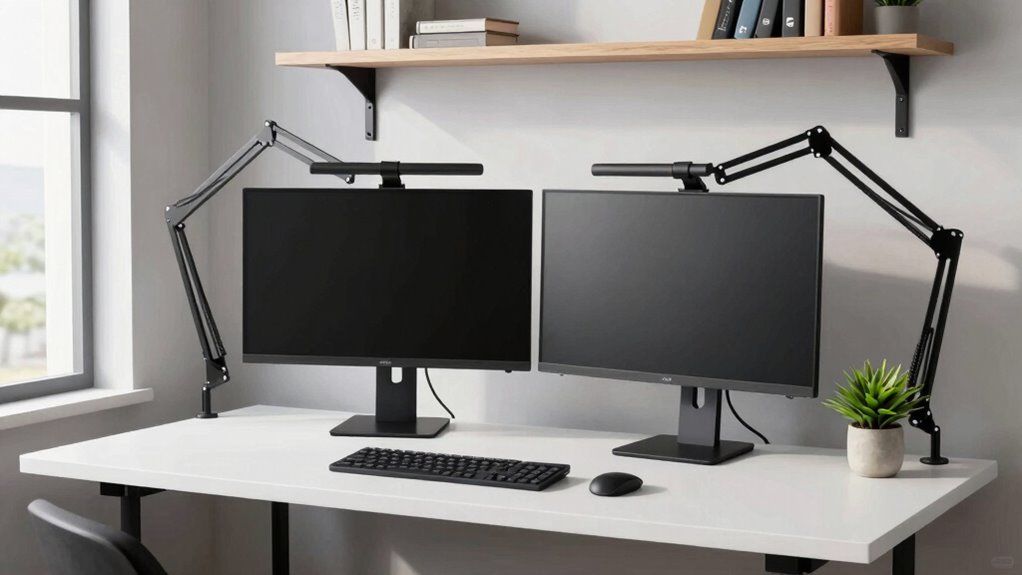
Setting up a dual-monitor workspace can boost your productivity, but it’s easy to clutter your space if you’re not careful. To keep everything organized and efficient, you need to plan carefully, focusing on maximizing space without sacrificing comfort. One of the best ways to do this is by investing in ergonomic accessories that promote good posture and reduce strain. Adjustable monitor stands or mounts allow you to position your screens at eye level, preventing neck and back pain. An ergonomic keyboard and mouse can also make a significant difference, especially when working long hours. These accessories not only improve comfort but also help keep your desk tidy by reducing clutter caused by awkward setups. Incorporating smart appliances like air purifiers or robot vacuums can also contribute to a healthier, more organized workspace.
Cable management plays an essential role in maintaining a clean and functional workspace. When you connect two monitors, cables can quickly become tangled or spill over onto your desk, creating chaos and wasting space. Use cable clips, sleeves, or under-desk trays to route cables neatly out of sight. This not only improves the aesthetics but also minimizes the risk of accidental disconnections or damage. Proper cable management makes it easier to move or adjust your monitors without pulling on cords, saving time and frustration. Opt for shorter cables or custom-length ones to avoid excess slack, and label each cable for quick identification when you need to troubleshoot or make changes. Additionally, considering ergonomic placement of your monitors can further enhance comfort and efficiency. Incorporating space-saving furniture options, such as compact desks or multi-purpose units, can also maximize your available area. Using workspace ergonomics principles can also improve your overall comfort and productivity during long work sessions.
Positioning your monitors is another key factor in optimizing your space. Mount your screens on adjustable arms or wall mounts to free up desk surface, allowing more room for your keyboard, documents, or other essentials. When choosing a setup, consider your workflow—place the primary monitor directly in front of you and position the secondary to the side at a slight angle. This minimizes neck movement and keeps your workspace streamlined. Additionally, placing your peripherals in ergonomic positions reduces clutter and enhances comfort, making your entire setup more efficient. Incorporating ergonomic accessories can further reduce strain and improve your overall work experience.
Finally, keep your workspace minimal. Regularly declutter by removing unnecessary items and organizing supplies in storage containers or drawers. Use vertical space for storage whenever possible, such as wall-mounted shelves, to free up your desk for work essentials. Combining smart cable management with ergonomic accessories and thoughtful placement ensures your dual-monitor setup remains space-efficient, comfortable, and productive. With a little planning, you can enjoy all the benefits of a dual-monitor setup without sacrificing precious desk space.
dual monitor adjustable arm mount
As an affiliate, we earn on qualifying purchases.
As an affiliate, we earn on qualifying purchases.
Frequently Asked Questions
What Are the Best Ergonomic Accessories for Dual Monitors?
The best ergonomic accessories for dual monitors include adjustable monitor stands to match monitor height, reducing neck strain. Incorporate keyboard ergonomics like split or cushioned keyboards to prevent wrist discomfort. Consider a monitor arm to free up desk space and allow easy adjustments, ensuring your screens are at eye level. These accessories promote healthy posture and enhance comfort during long work sessions.
How Do I Prevent Cables From Tangling in a Small Space?
Think of your cables as a garden vine needing gentle guidance. Use cable management tools like clips and sleeves to keep them tidy, preventing tangles. Position your monitors close to the wall and use under-desk trays to hide excess cables. This approach not only keeps your space looking clean but also maximizes space optimization, making your workspace more efficient and less chaotic. Proper management transforms your setup into a harmonious, clutter-free environment.
Can I Use a Dual-Monitor Setup With a Laptop Only?
Yes, you can use a dual-monitor setup with just a laptop. First, check your laptop’s compatibility with external display options, such as HDMI, DisplayPort, or Thunderbolt. Then, connect your monitors using the appropriate cables or adapters. You might need a docking station if your laptop has limited ports. This setup allows you to expand your workspace efficiently, even in small spaces, without sacrificing performance.
What Are the Cost-Effective Options for Dual-Monitor Mounts?
You can find budget-friendly mounting solutions like clamp-mounted arms or desk-mounted brackets for monitor placement. These options are cost-effective and versatile, easily fitting various desk types without needing permanent fixtures. Look for adjustable, VESA-compatible mounts to guarantee compatibility and flexibility. By choosing these affordable options, you maximize space efficiency and create a clean, organized dual-monitor setup that suits your remote work needs without overspending.
How Do I Optimize Lighting for Dual-Monitor Workspaces?
Optimizing your lighting is like painting with natural light. You should use ambient lighting to create a soft, even glow that reduces eye strain. Position your monitors to avoid glare by placing them perpendicular to windows or using adjustable blinds. Add diffused light sources, like desk lamps with shades, to improve visibility without harsh shadows. This setup minimizes glare and guarantees your workspace stays bright and comfortable for long hours.
cable management clips and sleeves
As an affiliate, we earn on qualifying purchases.
As an affiliate, we earn on qualifying purchases.
Conclusion
By optimizing your desk with sleek mounts and smart storage, you can create a dual-monitor setup that’s both efficient and space-saving. Think of it as having a modern spaceship cockpit, where every inch is purposefully designed. With a little planning, your workspace will feel as organized as a Victorian library—full of potential, yet perfectly tidy. Just remember, even the most advanced tech needs a good foundation to truly shine!
compact ergonomic keyboard and mouse
As an affiliate, we earn on qualifying purchases.
As an affiliate, we earn on qualifying purchases.
As an affiliate, we earn on qualifying purchases.
Halloween Picks
halloween
As an affiliate, we earn on qualifying purchases.