This checklist is for creators building an AI-focused desk for recording, video calls, and everyday automation. It covers a few named product picks alongside advice-only categories, so you can decide where a specific item fits your setup and where your own requirements should guide the choice. Keep your actual workflow at the center.

Get business pricing on tech for your team
- Business-only prices and quantity discounts
- Tax-exempt purchasing
- Multiple users, one account, clear invoices
The sections follow the main desk components: microphone, webcam, lighting, stream controller, external storage, and USB-C hub. Each section explains why the slot matters, offers practical points to check before buying, and gives a concise fit verdict for the named pick where one is provided. Advice-only sections focus on compatibility and intended use.
Use this as a shortlist, then confirm the details that affect your own devices and workspace. Check connection types, available desk or wall space, software needs, and how you plan to use each item. Buy in the order that addresses your biggest workflow gap, and revisit optional upgrades after the essentials are clear.
USB Microphone
A dedicated microphone can make spoken content and calls a more deliberate part of a creator desk. The listed pick is the RØDE PodMic USB Dynamic Broadcast Microphone, XLR + USB-C. Its name identifies two connection options, so consider which route matches your computer, audio equipment, and recording habits. Connection fit should be established before you commit to a particular microphone.
A common mistake is choosing by product category alone without checking the rest of the audio chain. If you intend to use USB-C, verify that your device and cable arrangement support the connection you plan to use. If you intend to use XLR, confirm that your existing setup has the necessary compatible connection path. Think about where the microphone will sit, how much desk space you can give it, and whether its placement works with your screen and keyboard. Placement and reach matter for a comfortable routine.
Also consider how you will switch between recording, calls, and other desk tasks. Check the product listing for included accessories and technical details rather than assuming them from the name. The listed model gives you both USB-C and XLR as options, which can suit a setup that values connection flexibility; the right choice still depends on the equipment you already use.
What to look for:
- Confirm whether your setup will use USB-C or XLR.
- Check device and cable compatibility for your intended connection.
- Measure the available space for microphone placement.
- Review the listing for included accessories and technical details.
- Consider how microphone placement fits your recording and call routine.
RØDE PodMic USB Dynamic Broadcast Microphone, XLR + USB-C
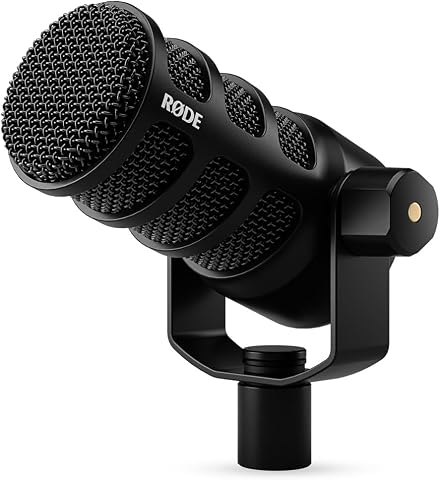
The RØDE PodMic USB is a versatile broadcast microphone with both XLR and USB-C connections, suitable for streaming, podcasts, and recording. It features onboard audio processing with APHEX DSP, noise rejection for speech clarity, and zero-latency monitoring for real-time audio feedback.
Pros:
- Versatile XLR and USB-C connectivity for flexible setup
- Built-in audio processing enhances sound quality
- Effective noise rejection for clear speech
- Zero-latency monitoring for real-time audio
Cons:
- May require additional equipment for professional XLR use
- Bulkier design compared to traditional microphones
Best for: Creators choosing between USB-C and XLR connection paths.
Not ideal for: Setups that have not confirmed a compatible connection path.
Bottom line: Choose the PodMic USB when its USB-C or XLR connection matches the audio setup you plan to use.
Webcam
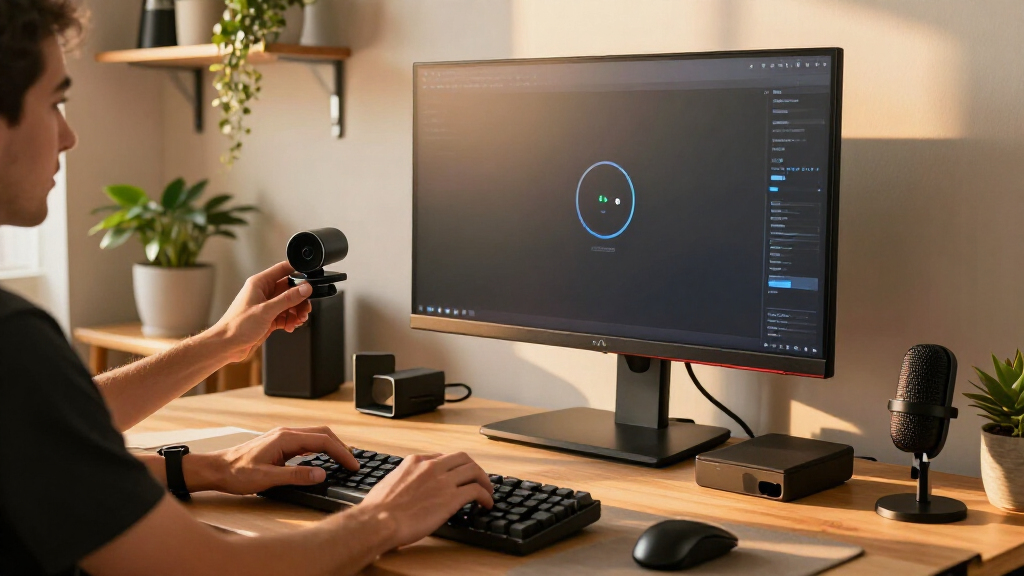
A webcam is a core consideration when your creator desk includes video calls or on-camera work. There is no specific product pick for this slot, so start with the devices and software you already use. Check that a prospective camera works with your computer and intended applications, and consider how it will attach or sit in your workspace. Device compatibility is the first filter.
One common buying mistake is focusing on a single advertised feature without considering the whole setup. Think about where the camera will be positioned relative to your screen and whether its view suits your usual desk posture. Check the listing for connection requirements, mounting approach, and any software or system details relevant to your equipment. If you regularly move between locations, consider how easily the camera can be set up and stored. Position and routine should shape your shortlist.
Before choosing, make sure the webcam can work alongside your lighting and other desk accessories without crowding the area. Review the actual product specifications for details you need, and avoid assuming that a camera will support your preferred applications or mounting arrangement based only on its category. A good match is one that fits your devices, workspace, and on-camera workflow.
What to look for:
- Confirm compatibility with your computer and video applications.
- Check the connection requirements against available ports.
- Review the mounting approach and available placement options.
- Consider how the camera position works with your screen and lighting.
- Verify relevant software and system details in the product listing.
Desktop Lighting
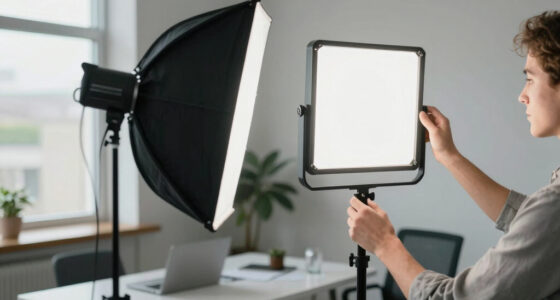
Lighting deserves a place on the checklist because it affects how your desk is arranged for video and on-camera work. The named pick is an LED Bathroom Mirror 55" x 30" Bathroom Vanity Mirror with Lights. Its product name describes a large mirror with lights, so its intended form and dimensions make workspace fit an especially important question. Measure first before treating it as a desk lighting solution.
A common mistake is assuming that an item with lights will automatically be suitable for a creator desk. Check the product listing to understand how it is designed to be installed, where power is required, and whether its dimensions and mounting approach work in your space. At 55 by 30 inches, confirm the available wall or desk area and consider how the mirror would sit relative to your camera, display, and other equipment. Installation and placement need to fit your actual room.
Consider whether a bathroom vanity mirror makes sense for your intended use and whether its shape and size fit the look and function of your setup. Verify the lighting controls and connection details in the listing instead of inferring them from the product name. This pick is best approached as a large-format option to evaluate carefully for workspace compatibility.
What to look for:
- Measure the wall or desk area against the 55" x 30" dimensions.
- Check the listed installation and mounting requirements.
- Confirm where the item needs access to power.
- Review the lighting controls and product specifications.
- Consider whether a bathroom vanity mirror suits your desk and camera arrangement.
LED Bathroom Mirror 55" x 30" Bathroom Vanity Mirror with Lights
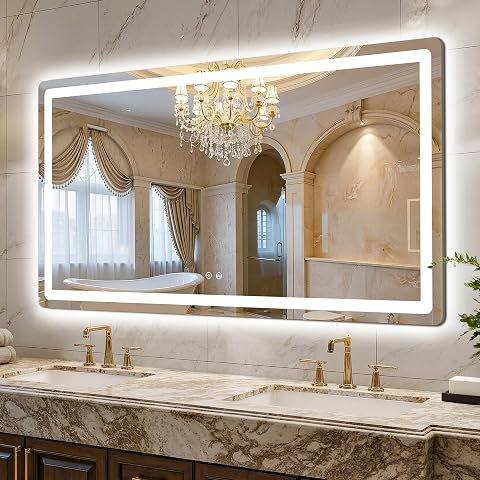
The LAWADA LED bathroom mirror offers dual lighting with front and back lights plus three color temperature settings (3000K warm, 4000K natural, 6000K white) and stepless dimming. It includes a rapid defogger that auto shuts off after 30 minutes, memory function for last setting, and a durable 5 mm tempered glass panel.
Pros:
- Adjustable dual lighting with three color temperature options
- Memory function remembers last brightness setting
- Rapid defogging with automatic shut‑off saves energy
- Durable shatter‑proof tempered glass
Cons:
- Installation may require electrical work for hardwired setup
- Original plug needed to verify functions before installation
Best for: Creators with space and an installation plan for a large mirror.
Not ideal for: Compact desks or setups without a suitable mounting location.
Bottom line: Verify the dimensions, installation approach, and intended use before selecting this mirror for desk lighting.
Stream Deck
A stream controller can make frequently repeated desk actions easier to organize, especially when you want physical controls alongside software workflows. The listed pick is the VSD N4 Pro Stream Controller with Customizable LCD Keys, RGB Knobs, an. The supplied product name is incomplete, so verify the full model name and details before buying. Its name identifies customizable LCD keys and RGB knobs; check the full listing for the complete feature set.
A common mistake is assuming that customizable controls will work with every application or automation tool you use. Confirm software compatibility, connection requirements, and any setup steps in the product listing. Think through which actions you would actually assign to keys or knobs, and whether those controls would simplify tasks you repeat. Check the controller’s footprint and how it will sit beside your keyboard, mouse, and microphone. Desk layout and software support both matter.
Review the control count and configuration details against your intended workflow rather than buying for visual features alone. Since the supplied name ends with “an,” it does not establish the complete product description; use the seller’s full listing to resolve that gap. The pick may suit someone looking for customizable desk controls, provided its full specifications and software fit are confirmed.
What to look for:
- Confirm the complete product name and exact model in the listing.
- Check compatibility with your operating system and intended software.
- Review the connection and setup requirements.
- Map your repeat actions to the listed keys and knobs.
- Measure the controller footprint against your desk layout.
VSD N4 Pro Stream Controller with Customizable LCD Keys, RGB Knobs, and Touch Ba
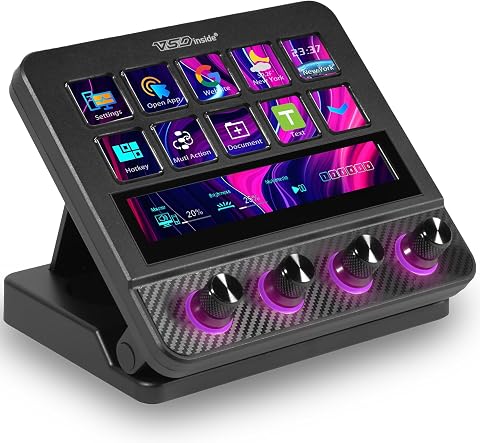
The VSD N4 Pro is a programmable stream controller with 10 customizable LCD keys, four RGB knobs, a touch bar, and support for one-tap macros and multiple scene presets. It connects via USB-C to Windows 10+ PCs and macOS 11.0+ devices, and includes a passive USB dock, adjustable stand, and customizable RGB lighting.
Pros:
- Customizable keys, knobs, and touch bar support macros and scene presets
- Works with Windows and macOS
- Includes a passive USB dock and foldable ergonomic stand
- Supports expandable plugins and customizable RGB lighting
Cons:
- No built-in speakers; audio functions send commands to the computer
- Full features may depend on downloadable plugins
Best for: Creators seeking configurable keys and knobs for repeat actions.
Not ideal for: Buyers who need confirmed compatibility before checking the full listing.
Bottom line: Verify the complete model, software support, and desk fit before choosing the VSD N4 Pro.
External SSD
External storage can be useful when your creator workflow involves keeping files accessible across devices or adding storage outside your computer. The named pick is the Samsung T9 Portable SSD 4TB. Check its connection requirements against your computer and any other device you intend to use; the product name alone does not establish which cables or accessories are included. Device and connection fit should guide your choice.
A common buying mistake is selecting storage capacity without considering how files will be organized, moved, and accessed. Think about the kinds of projects you keep on external storage and whether you need the drive to work with more than one device. Review the listing for supported connections, included items, and system compatibility. If you plan to use it across devices, confirm that each can connect as intended and that your file workflow accommodates that setup. Compatibility across devices is worth checking up front.
Also consider where the drive will live on your desk and how you will keep it connected or stored between sessions. Avoid assuming performance or durability details from the model name; consult the product specifications for any requirements relevant to your work. The listed 4TB capacity is a clear part of the pick’s name, while the best choice depends on your storage needs and compatible devices.
What to look for:
- Confirm your devices support the drive’s listed connection.
- Review the included cable and accessory details.
- Check system and file compatibility for each device you plan to use.
- Choose capacity based on the files and projects you expect to store.
- Consider where the drive will sit or be stored in your workflow.
Samsung T9 Portable SSD 4TB
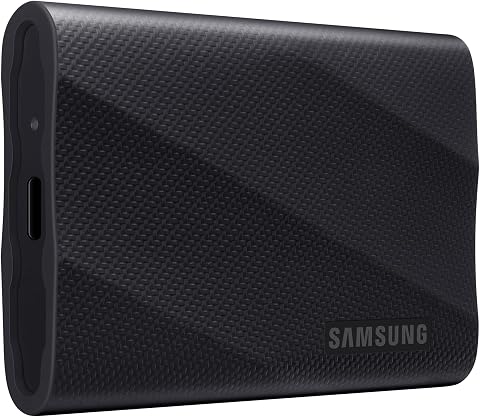
The Samsung T9 Portable SSD offers up to 4TB of storage with sustained read and write speeds of up to 2,000 MB/s via USB 3.2 Gen 2×2. It features Dynamic Thermal Guard to manage heat during heavy use and includes AES 256-bit hardware encryption for security.
Pros:
- Extremely fast transfer speeds up to 2,000 MB/s
- High capacity of 4TB suitable for large media projects
- Advanced thermal management keeps the drive cool during heavy use
- Broad compatibility with modern devices including iPhone and gaming consoles
Cons:
- Maximum speeds require specific USB 3.2 Gen 2×2 host support
- Enclosure material details are not specified
Best for: Creators who want a named 4TB external storage option.
Not ideal for: Setups that have not confirmed device or connection compatibility.
Bottom line: Choose the Samsung T9 after checking that its connection and specifications match your devices and storage workflow.
USB-C Hub
A USB-C hub is an advice-only slot in this checklist, so choose it around the devices and accessories you actually need to connect. Start by listing your computer’s available ports and the peripherals you expect to use at the same time. Confirm whether your computer’s USB-C port supports the functions you need; the connector shape alone does not establish every capability. Start with your port needs.
A common mistake is buying a hub based on the number of ports without checking what each port supports. Compare the hub’s listed connections with your peripherals, displays, and other equipment, and confirm any power or system requirements. Consider how the hub will sit on your desk and whether its cable can reach the computer from your preferred position. If your setup changes often, think about how you will connect and disconnect the devices you use most. Port function and cable reach both affect everyday fit.
Before choosing, check the full product specifications for data, display, and power support that applies to your devices. Do not assume that every USB-C hub provides the same functions or works with every computer. A suitable pick is one that covers your real connection list and fits your desk arrangement, with compatibility verified before purchase.
What to look for:
- List the peripherals you need connected at the same time.
- Confirm which functions your computer’s USB-C port supports.
- Match each hub port to your device and display requirements.
- Check listed power requirements and system compatibility.
- Consider hub placement and cable reach on your desk.
Buy in a budget-first order by addressing the task that currently interrupts your work most. Confirm essential connections and compatibility for your microphone, storage, or hub before adding desk controls or a large lighting fixture. For the webcam, begin with your computer, applications, and mounting needs. Prioritize practical fit and check product details that affect your setup.
You do not need to complete every slot at once. Build around the devices and routines you already rely on, then add items when they solve a clear need in your creator workflow. With careful compatibility checks and a little space planning, you can make steady progress toward a comfortable, capable desk.
Halloween Picks
halloween
As an affiliate, we earn on qualifying purchases.