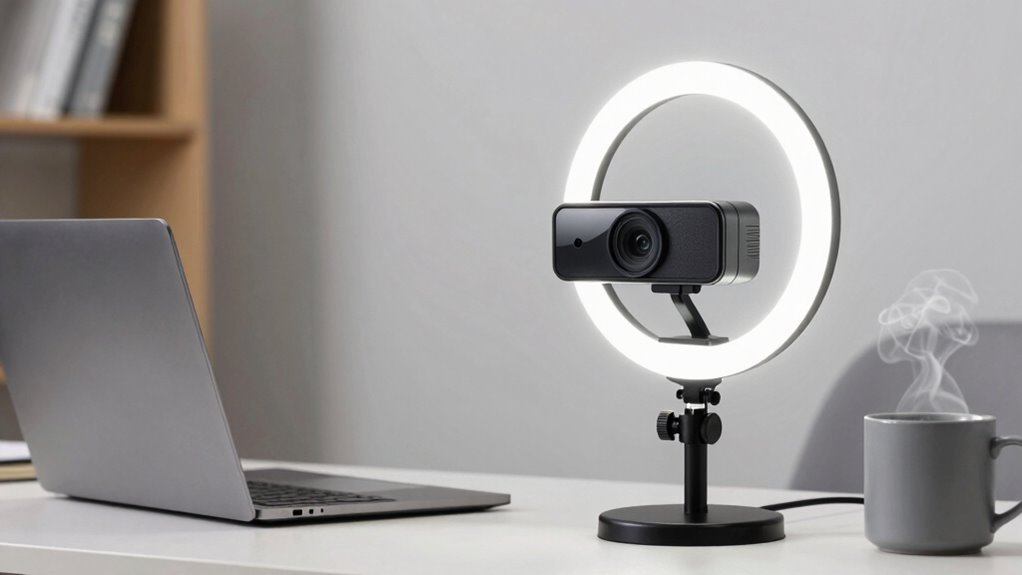

When choosing a webcam for professional meetings, focus on high resolution—at least 1080p for clear visuals, or 4K for added detail. Good lighting setup and automatic adjustments help you look your best, while quality microphones ensure your audio is sharp and noise-free. Compatibility with your devices and ease of use matter too. Investing in the right features can enhance your virtual presence—stick around to discover more tips for making a great impression.
Key Takeaways
- Opt for at least 1080p resolution or 4K for sharp, professional visuals.
- Ensure good lighting setup and features like automatic light correction for clear image quality.
- Choose a microphone with noise-canceling or external options for clear audio.
- Verify compatibility with your devices and conferencing platforms for seamless use.
- Prioritize overall image and audio quality to enhance your professional virtual presence.

In today’s remote work environment, having a high-quality webcam for professional meetings isn’t just a luxury—it’s a necessity. When you’re on video calls, your image is your first impression, so choosing a webcam that delivers clear, sharp visuals is essential. Look for a model with at least 1080p resolution to ensure your image remains crisp and professional. Higher resolutions, like 4K, can offer even better clarity, especially if you frequently share detailed visuals or presentations. Additionally, consider the webcam’s frame rate; a higher frame rate, such as 60fps, provides smoother motion, which can make your video feel more natural and engaging.
While picture quality is vital, don’t overlook how your environment impacts your overall appearance. A good lighting setup can make a significant difference. Even the best webcam can struggle in poor lighting conditions. You want a camera with good low-light performance or features like automatic light correction. To optimize your lighting setup, position yourself facing a natural light source or use adjustable ring lights or softboxes to eliminate shadows and create a balanced, flattering glow. Proper lighting ensures your face remains visible and professional, reducing the need for post-production adjustments. Incorporating lighting techniques can further enhance your video quality and overall presentation.
Good lighting, natural or artificial, enhances your appearance and professionalism on camera.
Another critical aspect is microphone quality. Clear audio is just as important as sharp visuals because poor sound can disrupt communication, even if your video looks perfect. Choose a webcam with an integrated microphone that offers noise-canceling features and good sensitivity. However, if you want the best audio, investing in an external microphone can be worthwhile. High-quality microphones pick up your voice clearly without static or background noise, making conversations more natural and less strained. Being aware of audio quality is essential for maintaining professionalism during virtual meetings.
Beyond these core features, consider the webcam’s compatibility with your devices and software. Easy setup and seamless integration with your preferred video conferencing platforms can save you time and frustration. Adjustable mounts or flexible positioning options allow you to find the perfect angle, ensuring you look confident and approachable during meetings.
In the end, selecting the right webcam for professional meetings involves balancing picture quality, lighting considerations, and audio clarity. By focusing on these key areas—resolution, lighting setup, and microphone quality—you ensure your virtual presence is polished and effective. When you invest in a good webcam, you’re not just improving how you look on screen; you’re enhancing your overall professional image and communication. Additionally, paying attention to content quality can help you present yourself more confidently and professionally during every meeting.

Logitech Brio 101 Full HD 1080p Webcam for Meetings, Streaming, Desktop, Laptop, PC – Built-in Mic, Shutter, Works with Zoom, Microsoft Teams, Nintendo Switch 2’s new GameChat Mode, USB-A,-Black
Compatible with Nintendo Switch 2’s new GameChat mode
As an affiliate, we earn on qualifying purchases.
As an affiliate, we earn on qualifying purchases.
Frequently Asked Questions
How Important Is Microphone Quality in a Professional Webcam?
Microphone quality is essential in a professional webcam because clear microphone clarity guarantees your voice comes through without distortion or background noise. Good audio prevents audio feedback and makes communication smoother. If your microphone isn’t up to par, your message might be lost or misunderstood, which can impact professionalism. Consequently, prioritize webcams with built-in microphones that deliver crisp, clean sound to maintain effective, seamless conversations during meetings.
Do Webcams Work Well in Low-Light Environments?
Sure, webcams excel in perfect lighting, but low-light environments? They often struggle, revealing their true limitations. You’ll want a camera with good sensors that can adapt to poor lighting conditions, but even then, the image quality might not impress. So, while some webcams handle dim settings better, don’t expect studio-quality results without proper lighting. Bright environments still give you the best video clarity and professionalism.
What Is the Ideal Webcam Resolution for Professional Meetings?
The ideal webcam resolution for professional meetings is at least 1080p, as it guarantees sharp image clarity and a professional appearance. Higher video resolution provides clearer details, which helps you look more polished on camera. When choosing a webcam, prioritize models that support full HD or higher, so your video quality remains crisp and clear, even in close-up shots or when sharing screens.
Can I Use a Webcam With Multiple Video Conferencing Platforms?
Using a webcam with multiple video conferencing platforms is like having a universal remote—you can seamlessly switch between apps. Most webcams today support cross-platform compatibility and video conferencing integration, so they work smoothly with Zoom, Teams, or Skype. Check the webcam’s specifications to guarantee it’s compatible with your preferred platforms, and you’ll avoid technical hiccups, making your meetings more professional and stress-free.
Are There Any Security Concerns With Webcam Use?
Yes, there are security concerns with webcam use. You should be aware of privacy risks, like unauthorized access or spying, and malware vulnerabilities that can exploit your device. To protect yourself, keep your software updated, disable the camera when not in use, and use strong, unique passwords. Additionally, consider covering your webcam when it’s not needed to prevent any accidental or malicious footage capture.

EMEET C960 4K Webcam for PC, 4K UHD CMOS Sensor, PDAF Auto Focus, Dual Omnidirectional Mics, Auto Light Correction, 73° FOV, Plug&Play Webcam w/Privacy Cover, Works w/Zoom/Teams/Skype/Google Meet
Unmatched Clarity with True 4K Resolution – Experience ultra-clear video conferencing with a genuine EMEET SmartCam C960 4K…
As an affiliate, we earn on qualifying purchases.
As an affiliate, we earn on qualifying purchases.
Conclusion
Choosing the right webcam can elevate your professional presence and make every meeting more effective. With features like high resolution, good lighting, and clear audio, you’ll project confidence and competence. So, aren’t you ready to invest in a webcam that truly reflects your professionalism? Imagine impressing clients and colleagues with seamless video quality—your future success starts with the right equipment today. Don’t settle for less when it comes to your professional image.
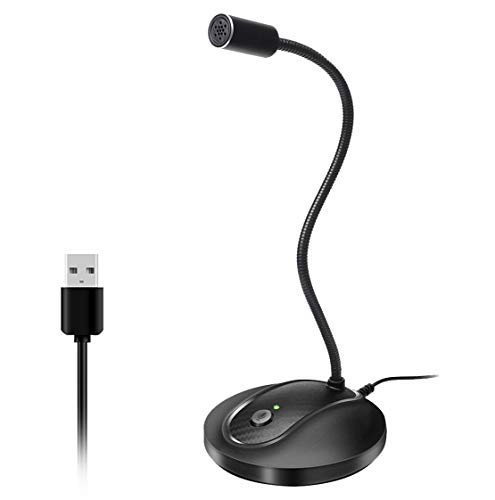
JOUNIVO USB Microphone, 360 Degree Adjustable Gooseneck Design, Mute Button & LED Indicator, Noise-Canceling Technology, Plug & Play, Compatible with Windows & MacOS
360 Degree Position Adjustable Gooseneck Design –Plug and play USB microphone Pick up the sound from 360-degree with…
As an affiliate, we earn on qualifying purchases.
As an affiliate, we earn on qualifying purchases.

30 Inch Webcam Stand Camera Mount, Upgraded Thick Base Flexible Gooseneck Camera Stand Desk Webcam Mount Clamp for Logitech Webcams C930e C930 C920 C922x C922 Brio 4K C925e C615, Gopro Hero 8 7 6 5 4
【Upgrade Thick Clamping Base】We have upgraded the clamp base. It is thicker and more durable. The clamping base…
As an affiliate, we earn on qualifying purchases.
As an affiliate, we earn on qualifying purchases.