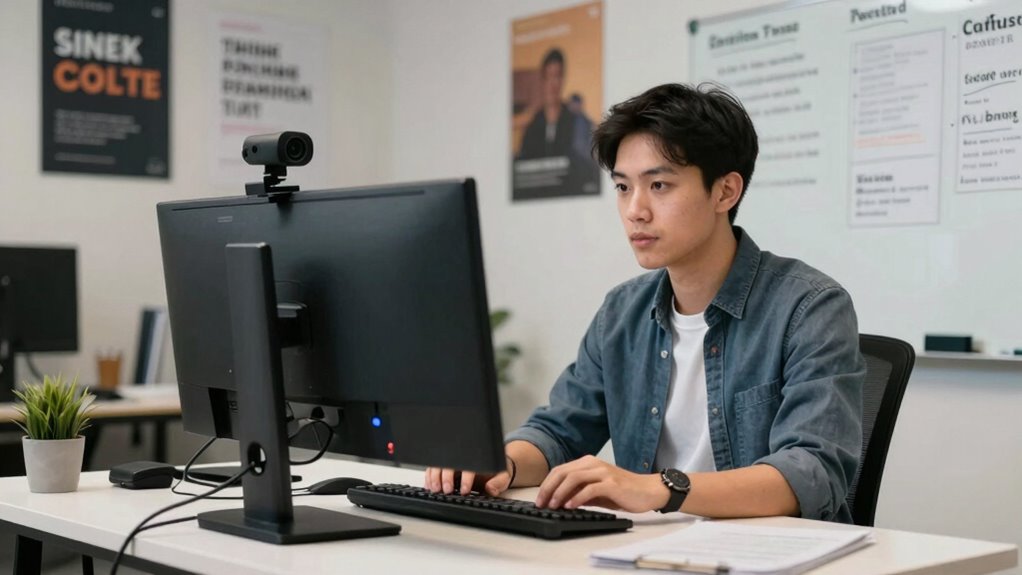

To guarantee a professional look during support coaching and QA reviews, position your webcam at eye level using an adjustable stand or sturdy books. Keep your face clearly visible with proper lighting—natural is best, but soft, diffused light works well. Maintain a tidy background and reduce distractions. Test your setup before calls to make sure everything looks good. If you keep these tips in mind, you’ll create a confident, engaging environment that impresses every time.

Get business pricing on tech for your team
- Business-only prices and quantity discounts
- Tax-exempt purchasing
- Multiple users, one account, clear invoices
Key Takeaways
- Position the webcam at eye level to foster natural eye contact and engagement during coaching and reviews.
- Use adjustable stands or books to ensure the camera captures your face clearly and maintains a flattering angle.
- Keep the background tidy and neutral to minimize distractions and project professionalism.
- Test and adjust lighting to ensure your face is well-lit without glare or shadows.
- Regularly review and refine your setup for consistent, high-quality video communication.

When it comes to support coaching and QA reviews, proper webcam positioning can make a meaningful difference in communication and evaluation. Your goal is to create an environment where your face is clearly visible, natural, and professional. To do this, start with an ergonomic setup that keeps your posture comfortable and your workspace organized. Position your webcam at eye level, so you’re not looking down or up at the camera. This helps maintain eye contact, which is vital for engaging with customers and appearing attentive during reviews. An adjustable stand or a stack of sturdy books can help you achieve the right height if your webcam isn’t built for it. Make sure your chair supports good posture, and your monitor is aligned to reduce neck strain, so your entire setup feels natural and sustainable over long periods. Additionally, ensuring your video quality is optimal by using a good camera can significantly enhance the clarity of your image. Considering lighting conditions and how they impact your appearance can also lead to a more polished presentation. Camera lighting is equally essential. Proper lighting ensures your face is well-illuminated, reducing shadows that can obscure expressions or create distractions. Natural light is ideal—place your desk near a window if possible, but avoid direct sunlight that causes glare or overexposure. If natural light isn’t available or sufficient, invest in a soft, diffused light source placed in front of you, slightly above eye level. Avoid harsh overhead lights that cast unflattering shadows or cause glare on your glasses. Consistent, even lighting helps reviewers see your facial cues clearly, improving the accuracy of assessments and making your interactions more personable. You can also adjust camera angle to find the most flattering and effective position for your face. Additionally, regularly checking your camera lens for dust or smudges can help maintain optimal video clarity and professionalism. Ensuring your camera setup is optimized will provide a more seamless and professional appearance during your calls. Beyond positioning and lighting, pay attention to your background. A tidy, neutral background minimizes distractions and maintains a professional appearance. Keep clutter out of view, and consider using a virtual background if your environment isn’t ideal. Keep your webcam lens clean to ensure a clear picture—dust and smudges can diminish video quality and distract viewers. Test your setup before important calls or reviews, adjusting your camera angle and lighting as needed. Small tweaks can notably improve how you appear on camera and how effectively you communicate.
As an affiliate, we earn on qualifying purchases.
Frequently Asked Questions
How Do I Prevent Glare on My Webcam During Calls?
To prevent glare on your webcam during calls, you should focus on glare mitigation by adjusting your lighting and webcam position. Keep your screen reflections from hitting your face by placing your monitor at a slight angle or using an anti-glare screen protector. Avoid direct light sources behind you, and opt for soft, diffused lighting. These steps help reduce glare, improve visibility, and guarantee your face is well-lit during calls.
What Lighting Setups Improve Webcam Video Quality?
To enhance your webcam video quality, embrace smart lighting techniques and thoughtful camera placement. Position your light source at eye level, slightly in front of you, to illuminate your face evenly and reduce shadows. Use soft, diffused lighting—like a ring light or lamps with shades—to create a flattering glow. Adjust your camera placement so your face is centered and well-lit, ensuring you’re clearly visible and engaging during calls.
How Can I Reduce Background Noise When Using My Webcam?
To reduce background noise during webcam calls, focus on noise reduction techniques. Place your microphone close to your mouth, but avoid obstructing your view. Use a directional microphone to pick up your voice and minimize ambient sounds. Additionally, consider using noise-canceling software or hardware. These steps help you maintain clear audio, ensuring your support coaching and QA reviews are professional and distraction-free.
What Are the Best Camera Angles for Professional Calls?
Imagine this: it’s 2023, and your professional calls need to stand out. Keep your camera at eye level to create a natural sense of engagement and maintain eye contact. Position the camera height so it’s straight ahead, not looking up or down. This angle conveys confidence and attentiveness. Avoid extreme angles or looking away from the lens—these can seem unprofessional. A steady, well-placed camera makes your communication clear and impactful.
How Do I Adjust Webcam Focus for Clear Video?
To adjust your webcam focus for clear video, start by enabling or adjusting auto focus if your camera has that feature. If your webcam lacks auto focus, manually turn the lens ring until the image sharpens. Also, regularly clean the lens with a soft, lint-free cloth to prevent blurriness caused by dust or smudges. These steps help make certain your video stays crisp and professional during support coaching and QA reviews.
As an affiliate, we earn on qualifying purchases.
Conclusion
Getting your webcam placement right is key to making a great impression during support coaching and QA reviews. When you’re positioned well, it’s easier to communicate clearly and project confidence. Remember, it’s all about making the best impression you can—think of it as hitting two birds with one stone. Keep practicing your setup, stay confident, and you’ll turn every review into an opportunity to shine.
As an affiliate, we earn on qualifying purchases.
tidy desk organizer for video calls
As an affiliate, we earn on qualifying purchases.
As an affiliate, we earn on qualifying purchases.
Halloween Picks
halloween
As an affiliate, we earn on qualifying purchases.