
🔍 Read the full analysis: 6 Picks For A More Connected Desk: Thunderbolt Docking Stations on ThorstenMeyerAI.com

Get business pricing on tech for your team
- Business-only prices and quantity discounts
- Tax-exempt purchasing
- Multiple users, one account, clear invoices
TL;DR
A buying guide from ThorstenMeyerAI.com ranks six Thunderbolt docking stations, led by Anker’s Prime 14-in-1 Thunderbolt 5 Dock. The selections span Thunderbolt 5 and Thunderbolt 4, but actual display support and charging depend on the computer and setup.
ThorstenMeyerAI.com has compared six Thunderbolt docking stations for desk setups in its original analysis, naming the Anker Prime 14-in-1 Thunderbolt 5 Dock its best overall pick for buyers seeking newer-generation bandwidth and a broad set of connections. The list also includes four Thunderbolt 4 options from Plugable and Dell, with the guide stressing that a dock’s listed ports do not by themselves guarantee compatibility with a particular laptop or monitor arrangement.
The guide’s six selections are the Anker Prime 14-in-1 Thunderbolt 5 Dock, Plugable’s TBT-UDM, Plugable’s 100W Thunderbolt 4 dock, Dell’s Pro SD25TB4, and the Dell WD19TB and WD19TBS. The source ranks Anker first, citing its Thunderbolt 5 positioning and broad connection set. It presents the TBT-UDM as a cross-platform Thunderbolt 4 option and the Dell Pro SD25TB4 as a current Dell-oriented choice.
The two other models serve more specific needs, including dual-monitor setups. Plugable’s second dock is presented for buyers prioritizing 100W charging and dual-monitor use. The WD19TB and WD19TBS are related models, but the guide says their power configurations differ: it lists a 180W adapter for the WD19TB and 130W Power Delivery for the WD19TBS. Those figures should not be treated as interchangeable measures of power delivered to a laptop.
The comparison says it weighs Thunderbolt generation, host compatibility, charging, display support, port variety and fit for the buyer’s setup, considerations also covered in this guide to laptop docks for Mac and PC. It does not provide a uniform set of independent test results or prices in the supplied material. Its rankings are therefore best read as a buying guide’s assessments, not as a guarantee that each dock will perform identically across computers.
The 6 picks
- 1
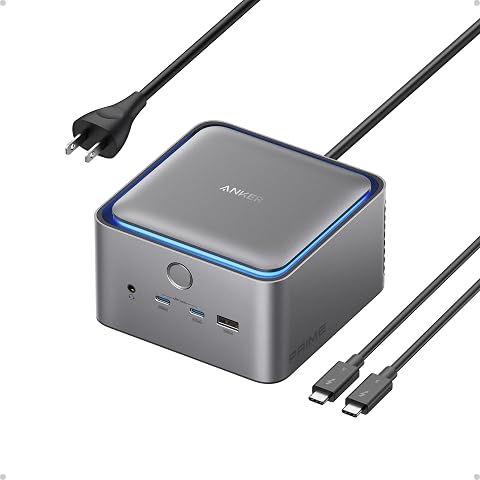 Anker Prime 14-in-1 Thunderbolt 5 Docking StationView on Amazon →
- 2
 Dell Pro Thunderbolt 4 Smart Dock SD25TB4 – USB-C Station 130W, 4 Displays 4K…View on Amazon →
- 3
 Plugable Thunderbolt 4 Dock with 100W Charging, Dual MonitorView on Amazon →
- 4
 Plugable Thunderbolt 4 Dock (TBT-UDM) for Mac and WindowsView on Amazon →
- 5
 Dell WD19TB Thunderbolt Docking Station with 180W AC AdapterView on Amazon →
- 6
 Dell Thunderbolt Dock WD19TBS with 130W Power DeliveryView on Amazon →
Matching a Dock to Your Setup
The practical choice is not simply the model with the most ports or the newest Thunderbolt generation. Buyers need to match the dock to the computer’s port capabilities, the power requirements of the laptop and the exact displays they plan to connect. A Thunderbolt 5 dock may offer more bandwidth headroom, but a computer without the relevant support may not take advantage of it.
Display output depends on the laptop, operating system, monitor resolution and refresh rate, and connection types used. A dock may have multiple display connectors while the host computer still limits how many screens it can drive or at what settings. Checking those details before purchase can help avoid spending on features a setup cannot use, or finding that a planned multi-monitor arrangement does not work as expected.
Products Worth Considering

Bose QuietComfort Headphones (2nd Gen) – Wireless Over-Ear Noise Cancelling Headphones, Eucalyptus Green

Amazon Kindle Scribe Colorsoft 64GB with Premium Pen

Apple Watch SE 3 GPS 40mm Smartwatch
As an affiliate, we earn on qualifying purchases.
Six Models Across Two Generations
The list groups one Thunderbolt 5 dock against five Thunderbolt 4 options. That makes generation a central distinction, but the source does not claim that newer is automatically better for every desk. For buyers with Thunderbolt 4 computers and routine office peripherals, the guide says a Thunderbolt 4 model may be a more suitable match than paying for bandwidth the host cannot use.
Within the Thunderbolt 4 group, the guide distinguishes models by intended use rather than treating similar labels as evidence of identical features. Plugable’s TBT-UDM is framed as a cross-platform option, while the second Plugable dock emphasizes charging and dual displays. Dell’s Pro SD25TB4 is positioned as a newer Dell-focused choice; the WD19 models may appeal to buyers matching an existing Dell setup, subject to checking power and compatibility.
“A dock’s port count alone does not guarantee that every screen or peripheral will work as expected.”
— ThorstenMeyerAI.com buying guide
Compatibility Depends on the Host
The supplied guide does not give the exact supported monitor resolutions and refresh rates for every dock and computer combination, nor does it establish that all six models support the same operating systems or host devices. It also does not provide prices, a publication date or a common benchmark methodology. Buyers should verify their laptop’s display limits, Thunderbolt capability and operating-system support against the dock maker’s current specifications.
Charging figures also require care: an adapter’s wattage and the power delivered to a laptop are not necessarily the same measure. The source lists model-specific figures for the Dell docks, but the material does not explain every power configuration or how charging may vary under load. Actual results for a particular computer remain unconfirmed by this comparison.
Check Specifications Before Buying
The next step for a buyer is to compare the dock’s official specifications with the exact laptop and desk setup: confirm Thunderbolt support, required charging power, operating-system compatibility, monitor resolution and refresh rate, and the available HDMI, DisplayPort or USB-C inputs. Anyone considering dual displays should verify the supported configuration for their specific computer rather than relying only on the dock’s general display claims.
The source does not announce upcoming testing or a follow-up update. The immediate decision is between paying for Thunderbolt 5 headroom, choosing a Thunderbolt 4 model with the needed features, or matching a dock to an existing Dell setup. Prices and availability should be checked at the time of purchase.
Key Questions
Which dock does the guide rank first?
ThorstenMeyerAI.com ranks the Anker Prime 14-in-1 Thunderbolt 5 Dock first, for buyers seeking newer-generation bandwidth and a broad set of connections. That is the guide’s assessment, not a guarantee it is the best match for every computer.
Which options are Thunderbolt 4 docks?
The Thunderbolt 4 models named are Plugable’s TBT-UDM, Plugable’s 100W dock, Dell’s Pro SD25TB4, and the Dell WD19TB and WD19TBS.
Will any of these docks run two monitors?
The guide highlights Plugable’s 100W model for dual-monitor use, but a dock’s display connectors do not establish what every computer can run. Confirm the laptop’s display limits, operating system, monitor specifications and connection types.
What is the difference between the Dell WD19TB and WD19TBS?
The source distinguishes them by listed power configuration: it gives the WD19TB a 180W adapter and the WD19TBS 130W Power Delivery. Check the exact product specifications and laptop power requirements before choosing.
Source: ThorstenMeyerAI.com