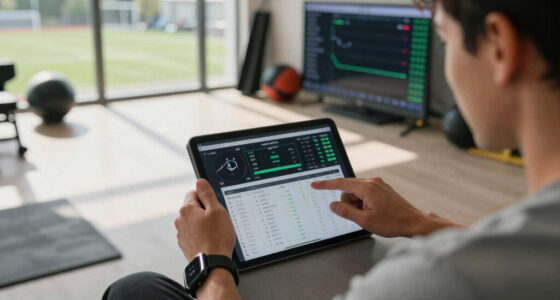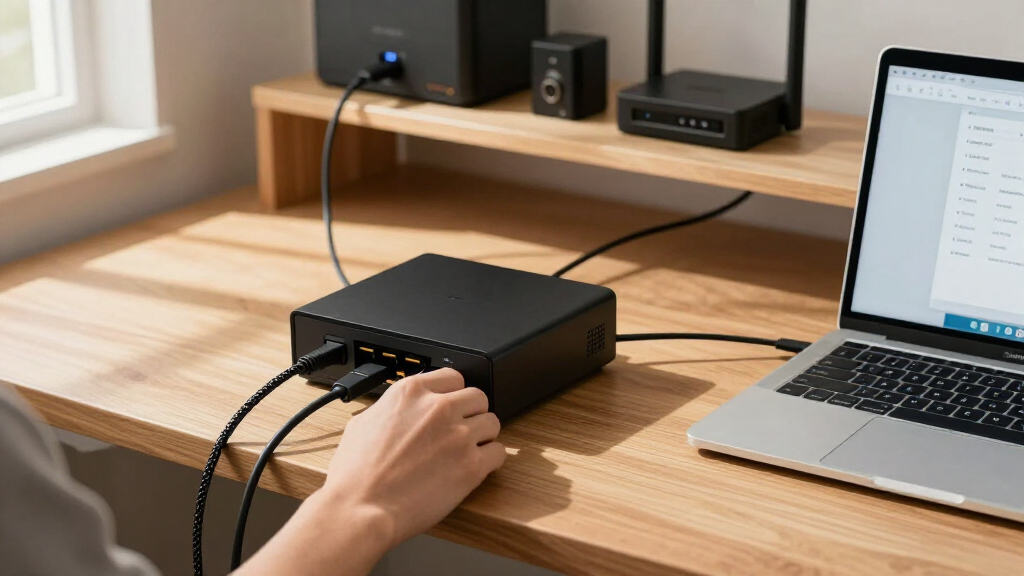

This checklist is for anyone assembling a home lab for AI automation, from a first local workflow to a setup that connects devices and services around the home. It focuses on the practical pieces that support computing, storage, networking, voice input, power control, and video.

Get business pricing on tech for your team
- Business-only prices and quantity discounts
- Tax-exempt purchasing
- Multiple users, one account, clear invoices
The sections follow those jobs: first the core computer, then audio and storage, followed by network coverage and a controllable outlet, with webcam guidance at the end. Product picks appear where provided; the mini PC and webcam sections offer selection advice only.
Use each section to match the item to your actual workflow before buying. Check device requirements, connections, placement, and compatibility with the tools you plan to use. Treat the look-for list as a shortlist for comparison, and skip capabilities your setup will not use.
Mini PC
A mini PC can serve as the central computer for an AI automation home lab, so choose around the work you expect it to do. Start by listing the services and workflows you intend to run, then check their stated operating system, processor, memory, storage, and graphics requirements. Requirements vary by software, and a small chassis alone does not tell you whether a computer can handle a particular workload.
A common buying mistake is choosing only by physical size or assuming every local AI task has the same hardware needs. Compare the mini PC’s specifications with the software you plan to install, and account for whether several services will run at once. Check the available ports against your peripherals and network setup, and confirm how storage can be expanded or replaced if that matters to your plan. Also consider where the computer will sit, how it will connect to a display during setup, and whether its supported operating system fits your tools. Match the machine to the workload you have in mind, rather than buying extra capability without a defined use for it.
What to look for:
- Processor and graphics requirements for your planned software
- Memory capacity suited to simultaneous services
- Storage capacity and expansion options
- Ports for displays, network, and peripherals
- Operating system support for your chosen tools
USB microphone
A USB microphone is useful when your automation setup needs voice input or recorded audio at a computer. The listed pick is the RØDE NT-USB+ Professional USB Condenser Microphone. Before choosing it, decide where you will use the microphone: a desk for calls, voice capture for a workflow, or another fixed recording position. Your intended placement affects the cable route, available desk space, and how easily you can speak toward it.
A frequent mistake is treating a USB connection as a guarantee that a microphone will work with every device or application. Confirm compatibility with the computer and software you plan to use, and check what connection and accessories are included against your setup. Consider whether the microphone can be positioned comfortably and whether nearby equipment or room sounds could interfere with your recordings. If it will be used with voice recognition, test it with the actual service and speaking distance before making it part of an automated workflow. Compatibility and placement matter as much as the product name: a microphone that is awkward to position or unsupported by your chosen software can frustrate everyday use.
What to look for:
- Compatibility with your computer and recording software
- Connection type supported by the intended device
- Included cable and any required accessories
- A practical position and speaking distance for your desk
- Fit with the voice capture or recording workflow
RØDE NT-USB+ Professional USB Condenser Microphone

The RØDE NT-USB+ is a professional-grade USB condenser microphone featuring a studio-quality capsule, ultra-low-noise circuitry, and versatile controls. It offers high-resolution audio, zero-latency monitoring, and includes a pop filter and desktop stand, making it ideal for podcasting, music recording, and streaming.
Pros:
- High-quality studio-grade sound with low noise
- Versatile controls and audio processing features
- Includes pop filter and desktop stand for convenience
- Compatible with computers, tablets, and smartphones
Cons:
- Requires USB-C port, may need adapters for some devices
- Premium features may be complex for beginners
Best for: A setup that needs a dedicated USB microphone
Not ideal for: Workflows that do not use voice or recorded audio
Bottom line: Consider the RØDE NT-USB+ when its connection and software compatibility fit your audio workflow.
External SSD
External storage can give an automation lab a separate place for files and working data. The listed pick is the SanDisk 2TB Extreme PRO Portable External SSD. Think through what you expect to store, how often you will move files between devices, and whether this drive will be used as working storage, an archive, or both. Those choices affect the capacity and connection requirements that make sense for your setup.
A common mistake is assuming that the capacity named in a product title will match every device’s available space or that the drive will connect directly to every computer. Check the ports on the computer and the drive’s supported connection, including whether an adapter is needed. Confirm the storage format and compatibility for the operating systems and devices involved, especially if you plan to move the drive between them. Decide how the external drive fits into your backup routine; a portable drive can make files easier to carry, but the workflow still needs a clear way to keep important data available. Check capacity, connection, and format before relying on the SSD as part of an automated setup.
What to look for:
- Capacity suited to the files you intend to keep
- Connection supported by your computer and other devices
- Adapter needs for the ports in your setup
- File system compatibility across intended operating systems
- A clear role in your storage and backup routine
SanDisk 2TB Extreme PRO Portable External SSD

The SanDisk 2TB Extreme PRO Portable External SSD offers fast transfer speeds of up to 1050MB/s using NVMe technology. Its rugged aluminum design is water- and dust-resistant with impact protection, making it ideal for creative professionals on the go.
Pros:
- High transfer speeds for quick file movement
- Rugged and durable design with water and dust resistance
- Compatible with both PC and Mac systems
Cons:
- Read speed only; write speed may be lower
- Performance can vary depending on usage conditions
- Slightly higher price due to rugged features
Best for: People who want external space for lab files
Not ideal for: Setups with no need for portable external storage
Bottom line: Choose the SanDisk 2TB Extreme PRO if its capacity and connection fit your devices and storage plan.
Wi-Fi 7 router
A home network connects the computers and smart devices that an automation workflow may rely on. The listed pick is the NETGEAR Orbi 970 Series WiFi 7 Mesh System (3-Pack). Before selecting a mesh system, map where the devices will be used and check which network standards the computers and accessories support. The network’s role in your lab depends on the devices you already own and the coverage your home needs.
A common mistake is buying a router based only on its wireless generation or assuming a three-piece system is the right fit for every layout. Check the manufacturer’s setup and compatibility details, and consider where each unit could be placed in relation to the router, the devices, and available power outlets. Confirm whether your internet service equipment and preferred network configuration are supported. Also think about wired connections for equipment that will remain in one place, and whether your devices can use the network features you expect. Plan around your home layout and current equipment before choosing a mesh system; the product name alone cannot establish how it will fit your specific network.
What to look for:
- Compatibility with your internet service equipment
- Support for the Wi-Fi standards your devices use
- Placement options for each mesh unit
- Wired network connections for fixed equipment
- Setup requirements that fit your home network
NETGEAR Orbi 970 Series WiFi 7 Mesh System (3-Pack)

The NETGEAR Orbi 970 Series is a 3-pack WiFi 7 mesh system (router plus 2 satellites) providing up to 10,000 sq ft of coverage and support for up to 200 connected devices. It delivers speeds up to 27 Gbps using patented Quad-Band technology with a dedicated backhaul, and includes 10 Gig and 2.5 Gig wired ports for high-performance connections.
Pros:
- Massive whole-home coverage up to 10,000 sq ft with no dead zones
- Very fast WiFi 7 speeds up to 27 Gbps with dedicated backhaul
- High-speed wired options including 10 Gig ports
- Easy guided setup and remote management via the Orbi app
Cons:
- NETGEAR Armor security requires a paid subscription after 30-day trial
- Real-world speeds vary with devices and internet plan
- Only for use in the US
Best for: Homes that need a mesh setup for connected devices
Not ideal for: Setups where current network coverage already meets needs
Bottom line: Consider the NETGEAR Orbi 970 Series if its compatibility and placement needs suit your home.
Smart plug
A smart plug can add a controllable outlet to an automation setup, while a power meter can provide information about the connected device. The listed pick is the Eve Energy (Matter) 2-Pack – Smart Plug & Power Meter. Start by identifying the device you plan to connect and the control platform you want to use. Then check that the plug’s supported features work with both, rather than relying on a general expectation that any smart plug will fit any workflow.
A frequent mistake is overlooking the connected device’s electrical requirements or assuming that a Matter label guarantees every feature in every platform. Review the plug’s supported electrical limits and the device’s requirements, then check the manufacturer’s compatibility details for your controller and network. Confirm whether setup requires a hub or another component, and consider whether the outlet remains accessible once the plug is installed. If you intend to automate power changes, verify that the device can safely be controlled that way and that the automation platform exposes the controls you need. Check electrical and platform fit before making an outlet part of a routine, particularly when connected equipment needs to stay powered consistently.
What to look for:
- Electrical requirements and limits for the connected device
- Compatibility with your Matter controller and platform
- Any hub or setup requirements
- Clear access to the outlet after installation
- Support for the power controls your automation needs
Eve Energy (Matter) 2-Pack – Smart Plug & Power Meter

The Eve Energy 2-Pack is a Matter-enabled smart plug with a power meter, compatible with iOS, Android, and various smart home hubs. It allows remote control of appliances via voice or app, ensuring privacy with local communication and easy setup.
Pros:
- Seamless cross-platform control with Matter support
- Local communication ensures privacy and reliability
- Easy setup with compatible smart home hubs
Cons:
- Requires compatible hub or device for full functionality
- Limited details on power measurement features
- No mention of energy monitoring specifics
Best for: People adding a compatible outlet to an automation
Not ideal for: Devices that should not be power-cycled
Bottom line: Choose Eve Energy when its electrical limits and platform support match the device and control system.
Webcam
A webcam can support video calls, visual monitoring, or workflows that use a camera, but the right choice depends on the actual task. Start by deciding which application will use it and whether the camera will be attached to a computer or placed elsewhere. Then check the software’s camera requirements and the device’s supported connection. For a fixed home lab, also think about the camera’s angle and whether the location gives a useful view.
A common mistake is focusing on resolution alone while overlooking operating system support, mounting, field of view, or privacy controls. Confirm that the webcam works with the computer and applications you plan to use, and check whether it includes a mount that fits your display or intended surface. Consider lighting and background at the installation spot, since those affect the image the camera captures. If a workflow depends on a camera feed, test the complete path through the application before relying on it. Choose for the camera’s job, and check connection, placement, and privacy settings as part of the fit.
What to look for:
- Compatibility with the intended computer and applications
- Connection type supported by your device
- Mounting options for the chosen location
- Field of view suited to the workflow
- Privacy controls and a practical way to disable the camera
Build in a budget-first order by prioritizing the item that enables your main workflow, then add storage, network changes, audio, or outlet control as those needs become clear. Compare the mini PC against the software requirements first, and check device compatibility before filling gaps with accessories.
A home lab can grow in stages. Begin with a setup you can explain and support, test each new device with the tools you plan to use, and keep the checklist nearby as your workflows change. Buy for the next real task, then expand when you know what the setup is missing.
Halloween Picks
halloween
As an affiliate, we earn on qualifying purchases.